
MovieBox
MovieBox offers Android users a convenient way to explore movies, TV shows, and web series on the go. However, beginners may find downloading and setting up a third-party application somewhat confusing, especially when using Android for the first time.This comprehensive guide explains how to prepare your device, install the application step by step, and handle common setup issues. It also covers essential considerations for using third-party apps, helping new Android users approach the installation process with greater awareness and confidence.

What Is MovieBox?
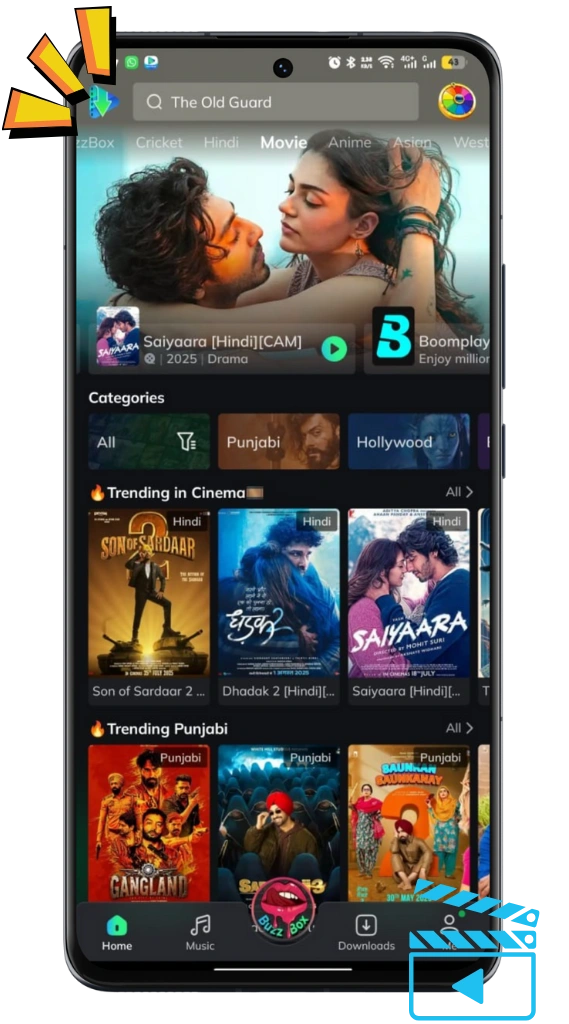
MovieBox APP is a widely recognized media application designed for Android devices that brings together movies, television series, and online videos under a single user interface. Instead of switching between multiple apps, users can find various genres and entertainment options in one place.
Depending on the specific version or release you download, MovieBox APK may include several key features:
- Content Search: Quick navigation tools to search for specific titles, actors, or genres.
- Categories & Watchlists: Organized collections such as Action, Drama, Comedy, or trending series to help you discover new titles.
- Playback Controls: Options to adjust screen resolution, change audio tracks, and enable subtitles in different languages.
- Offline Downloads: Functionality that allows users to save video content directly to their local storage for viewing without an internet connection.
Things to Check Before Installing MovieBox
Before you start downloading any application file (APK), it is essential to prepare your Android device. Taking a few simple precautions will ensure a smooth setup and prevent installation errors.
1. Simple Device Check Table
| What to Check | Where to Check on Your Phone | Why It Is Important |
| Android Version | Settings > About Phone | Prevents compatibility errors with older Android versions. |
| Free Storage Space | Settings > Storage | Ensures there is enough space for the app and video downloads. |
| Security Settings | Settings > Security | Allows you to monitor unknown app installations. |
Step-by-Step Installation Guide
Installing an application using an APK file is known as “sideloading.” Follow these simple steps to safely install MovieBox PRO on your Android device:
- Find a Reliable Source: Always look for a trustworthy website or download link. Avoid websites that display excessive pop-up ads, fake download buttons, or suspicious redirects.
- Download the File: Click on the download link to obtain the .apk file. By default, your phone will save this file inside the MovieBox Downloads folder
- Verify the File Name: Open your phone’s File Manager and look at the downloaded file. Make sure the file extension ends in .apk and matches the app name.
- Open and Install: Tap on the file. If your system displays a security prompt about installing apps from unknown sources, review the warning carefully before tapping “Allow” or “Install.”
- Review App Permissions: Once installed, launch the app. It may ask for permission to access your device storage or notifications. Only grant access to features that make sense for a streaming app (such as storage for offline downloads).
Common Problems & Simple Solutions
If you encounter an issue during or after installation, check the simple troubleshooting guide below.
Troubleshooting Quick Guide
| Problem | Likely Cause | Easy Solution |
| App will not install | File downloaded incompletely or insufficient storage | Redownload the file and free up internal memory space. |
| Installation blocked | Security protection active | Allow installation from the specific browser or file manager. |
| App closes or crashes | Incompatible version or temporary glitch | Clear app cache in Settings or restart your phone. |
| Storage gets full fast | High quality offline video files saved | Lower video download quality or delete watched videos. |
Security & Privacy Rules for Beginners
Safety should always be your top priority when downloading apps outside the official Google Play Store.
- Check App Permissions: A streaming app generally needs storage access for downloads. If it requests access to your phone contacts, messages, or location, deny those permissions.
- Keep Your Operating System Updated: Regularly update your Android system software so your phone has the latest security protections against malicious files.
- Avoid Modified Builds: Steer clear of unverified “modded” packages promising free premium features, as they may contain unwanted software or security risks.
- Watch Out for Ads: If an app displays unusual pop-up ads outside of its own interface or opens unwanted browser tabs, uninstall it immediately.
Conclusion
MovieBox IOS can be easier to set up when you prepare your Android device beforehand. Check your available storage, confirm your Android version, and follow each installation step carefully. Additionally, review app permissions before granting access and avoid unfamiliar download sources. By keeping your device organized and security settings active, you can create a smoother and more informed streaming experience.
1 thought on “MovieBox Download: Full Guide for New Android Users”